Loading...
Showing posts with label MS-Office. Show all posts

Wednesday, 18 September 2013

// // Leave a Comment

Microsoft Excel 2003 : File Menu and Its Commands-2

Hi,

I am back with Remaining part of Excel's File Menu and Commands.
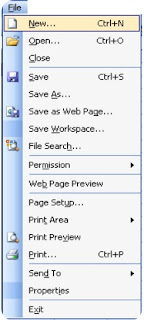


As you remember, in previous post, we have talked about File Menu Commands upto Web Page Preview.
http://www.prithviraj.com.np/2012/06/microsoft-excel-2003-file-menu-and-its.html

Lets start with remaining commands.


11. Page Setup :


When you click this option Page Setup dialogue box appears from which you can adjust document margins, paper size, orientation, header footer, sheet, etc. This is one of the important option for printing document.

    12. Print Area :

This command sets the print area of current worksheet. You can choose which cell range should be printed in paper. You can also clear print area that you previously set. To Set a Print Area, choose range of cells by selecting, then click on File menu, choose Print Area option and finally choose Set Print Area option. To Remove a Print Area click on File menu, go to Print Area and choose Clear Print Area option.

   13. Print Preview :

This option shows how the document will appear after printing in paper. This is very important task before printing any document to save Paper and money. If any improvement needed you have to adjust document margins and other properties from Page Setup option. 

   14. Print (Ctrl+P) : 


This command sends instruction to attached printer that is configured with system. You have options to choose Printer, Page Range, Number of Copies, etc. Shortcut key for this command is CTRL+P.

   15. Send To :

If you want to send your excel workbook to other people via e-Mail you have following options to send the file. This command has following sub-menu:  

  1. Mail Recipient
  2. Mail Recipient (For Review)
  3. Mail Recipient (As Attachment)
  4. Routing Recipient
  5. Exchange Folder
  6. Online Meeting participant
  7. Recipient using Internet Fax-Service

   16. Properties : 

This command shows you Document Properties dialogue box to edit or change properties of document such as Title, Subject, Author, Company, Keywords, and other values which are very important to determine the documents property value which will creates Identity of file.


17. Exit : 

This command terminates MS-Excel. This is alternative of ALT+F4 key. You can also quit application from Title Bar or Task bar also. If the document is not saved yet, MS-Word prompts you to save document and shows Save As dialogue box if chosen Yes from prompt and terminates after saving, if chosen No, terminates immediately and if chosen Cancel MS-Excel remains opened. 


Keep reading, for more Tutorials and Articles subscribe. 

All the Best. 


Read More

Friday, 6 September 2013

// // Leave a Comment

Creating New File and Folder in MS-DOS

Hi,

This is another Tutorials in MS-DOS Series. In this post, we will learn to Create a new file and folder using DOS System. Before this, I would like to introduce you with Command Prompt.
Prompt means “Assist by suggesting the next words of something forgotten or imperfectly learned.” MS DOS prompt also help you and interfaces with you.

In above line C: (colon) is current drive , \ (backslash) is symbol for directory (folder), Users is directory name, \ (backslash) is directory symbol, John is name of folder and > (greater than) is command prompt symbol. This is the place, where you will write command.
1. How to create a File?

Use following commands to create a file in MS-DOS command prompt.

copy con filename ↵

Hi, My name is John. You are learning how to create a file in DOS mode.

^Z ↵
Meaning of above commands.

copy con – This command is used for creating new file.

↵ – This is Enter key. This executes command typed in prompt.

Hi,.. .. .. in DOS mode. – This is text of your file.

^Z ↵ – This is Ctrl+Z key. This saves current file. Alternate for this is F6 key.

2. How to create Folder?

Use following commands to create a folder (directory) in MS-DOS command prompt.

md foldername ↵

or

mkdir foldername ↵
Meanings of Above Command:


md or mkdir – Make Directory

↵ – Enter Key to execute command.
Will be back with more on MS-DOS Series. Till then, you can add me on Google+ at +John Bhatt 
Read More
// // Leave a Comment

Component files of MS-DOS

Hi,

I am back after so long on my Tutorial Series. This is about MS-DOS.

We left at Introduction of Commands, today we will continue with File System of MS-DOS.

DOS is created using following files. IO.SYS, MSDOS.SYS, COMMAND.COM, AUTOEXE.BAT.
These files are created for special purpose like booting, creating and coordinating with devices for input, output  and saving internal commands of DOS in memory.
In other words these are program files which are created which creating DOS. You will get brief introduction to these files on next page.


  1. IO.SYS & MSDOS.SYS: These both files are hidden files. These are system files and are present on every disc. At the time of booting both of these Files are automatically get saved in Temporary Memory. IO.sys stores the standard operation related to input and output devices. And MSDOS.sys file stores command that contact with operating system.

  1. COMMAND.COM : This is a command interpreter file in MS-DOS which is a group of IO.sys, MSDOS.sys and COMMAND.COM. At the time of booting of computer, all these three files are automatically saved in the memory. COMMAND.COM file contains all the definitions of Internal command and programs of these commands. This file is mainly responsible for executing command which are typed by user in command prompt.. 

  1. AUTOEXE.BAT: After booting Operating System it looks for AUTOEXE.BAT file in the disc and executes it. This process is repeated when computer is switched on. It is a batch file which contains MS-DOS command like a program file and it automatically executes the command written in it. Therefore it is named AUTOEXE.BAT which means self executable batch file.

On next post, I will be talking about creating a File in MS-DOS and Making New Directory (folder).

Till then, you can add me to Google+ at +John Bhatt 

Read More

Sunday, 16 September 2012

// // Leave a Comment

Support Help Nepal Network by Facebook.

Facebook....
A method to Pass Time and in its language utility to connect with World. There are more accounts on Facebook than the Polulation of Earth.

Friends, some one is willing to do good work using Facebook. You should support. Just one click to Support a will to do for the Nation. I think every body wants to do something for his nation. Its time to do something.

Lets Vote for Help Nepal Network on Chase Community Giving's Polling Competition.

http://apps.facebook.com/chasecommunitygiving/charity/view/ein/51-0496452


Like application. and Vote.
Read More

Tuesday, 12 June 2012

// // Leave a Comment

Microsoft Excel 2003 : File Menu and Its Commands-1

Hello Friends,

I am Back with Excel Tutorial Series. Lets Start with File Menu and Its Commands....

1) New (Ctrl+N) : 

As in earlier software we learned, New works same. When clicked New in File menu you will get New option in Task Pane and you have following options to choose:
Blank Workbook
From Existing Workbook….
As I told earlier, MS-Excel’s document is known as Workbook. Choose Blank Workbook to create one.
Shortcut Key for New Blank Workbook is CTRL+N (^N).


2) Open (Ctrl+O) :

This option is used to Open previously saved Workbook for Viewing, Editing, Printing or Analyzing.
Shortcut for this option is CTRL+O.  Here is Open Dialogue Box.

3) Close :

This command is used to close current workbook. You can close your file without exiting from program. 
When clicked Close it prompts you to save workbook if it is not saved yet. 
Shortcut for this option is CTRL+W.

4) Save (Ctrl+S) :

This option saves current active workbook. 
If it is being saved first time it displays Save As Dialogue Box and gives you option to choose location, give name of workbook and Set File Format else it updates current workbook. 
Shortcut for this command is CTRL+S. Here is a Save As Dialogue Box.

5) Save As :

This command displays Save As dialogue box each and every time you click/choose this option. Even your workbook is Already saved, you will get Save As dialogue box to save your file with other name, at other location or with another format/extension. This command is also a very popular and useful command for Excel. 
Shortcut Key for this option is F12.

6) Save As Web Page :

This command saves current workbook as Web Page so that it can be published on the web. You have options to choose which sheet you want to publish, Add interactivity, etc. Whenever clicked this option, save as dialogue box appears with some modification. Such as Change Title and other option.


7) Save Workspace ;


A Document Workspace site is a Microsoft Windows Share Point Services site that is centered around one or more documents. You and your friend can work on same Workbook at same time at Workspace and update the individual work at final stage.
So this is very good feature of MS-Excel that makes work easy and friendly in Networking.

8) File Search : 

This option is used to search Files or File Contents. This is same as File or Folder Search option in Start Menu. But you can search only such documents which are supported by MS-Excel. You have feature to choose location and File Type on Task Pane when this option is chosen.


9) Permissions :


You can create workbook with restrictions only if you have installed Professional version of Microsoft Office 2003.
This feature works on MS-Word, MS-Excel, MS-PowerPoint or MS-Excess only if Information Right Management feature is added to your software.
This feature manages to whom you allow to make change or share your file.

10) Web Page Preview:


This option shows the workbook in browser how it would look like after publishing. If you have created your document for Web Page purpose you can experience the high quality fun of creating web pages. The temporarily converted webpage is stored in temporary folder in .mht and final output file is in .html format.

Remaining Options will be completed soon.

Thanks for Patient. 
Read More

Saturday, 9 June 2012

// // Leave a Comment

Shortcuts in Microsoft Excel 2003

Some Basic and Important Shortcuts.

     Short Key                                          Function
Tab or  Key (Right Arrow)           Move One Cell Right.
Shift + Tab or  (Left Arrow)         Move One Cell Left.
Enter or  Key  (Down Arrow)      Move One Cell down.
Shift + Enter or  (Up Arrow)       Move one Cell up.
Page Up                                          One Screen Up.
Page Down                                     One Screen Down.
Alt + Page Up                                One Screen Left
Alt + Page Down                           One Screen Right
Ctrl + Page Up                               Move Worksheet Left
Ctrl + Page Down                          Move Worksheet Right
Ctrl + End                                      Last Active Cell
Ctrl + Home                                  First Active Cell
Ctrl +    (Right Arrow)              Last Column of Workbook
Ctrl +     (Left Arrow)               First Column of Workbook
Ctrl +     (Down Arrow)            Last Row of Workbook
Ctrl +      (Up Arrow)               First Row of Workbook

How to Close Microsoft Excel  2003.

You can close Microsoft Excel in following ways:
  • Click on Lower Close button located below the Title Bar’s Close button. Doing this will prompt you top save document if it is not saved yet. Then Click on Close Button of Title Bar.
  • Right Click on File Name in Task Bar and choose  Close option. Microsoft Excel will prompt you to save document if it is unsaved.
  • Click on ALT+F4 key directly from Keyboard. Microsoft Excel will prompt you to save document if it is unsaved.

Read More
// // Leave a Comment

Screen of Microsoft Excel 2003

This is the Screen of Microsoft Excel 2003 when opened a New Blank Excel Workbook.

Let's be familiar with the MS-Excel Window.

Components of MS-Excel Screen as above numbered

  • Title Bar -----1 
  • Menu Bar -----2 
  • Standard Tool Bar -----3 
  • Formatting Tool Bar -----4 
  • Formula Bar -----5 
  • Global Point -----6 
  • Row Headings -----7 
  • Column Heading -----8 
  • Cell -----9 
  • Cell Range -----10 
  • Work Area/ Creating Area -----11 
  • Sheet Tabs -----12 
  • Scroll Bars (Vertical and Horizontal)----13A+13B 
  • Task Pane -----14 
  • Status Bar -----15 
Coming with Next Chapter soon.
Read More

Monday, 4 June 2012

// // Leave a Comment

Introduction to Computer.

Computer


Introduction:

A computer is a programmable machine that receives input, stores and manipulates data, and
provides
output in a useful format to the user.
The term computer stands for
C: Commonly
O: Operate
M: machine
P: Particularly
U: Useful
T: Trade/Training
E: Education
R: Research

Characteristics of Computer

[1] The ability to perform calculations at the very fast speed. >> Speed and Timeliness
[2] The ability to take information and to store that information for future retrieval. >> Versatile
[3] The ability to take in and store a small variety of instructions for execution. >>Reliability
[4] The ability to use simple logical rules to make decisions for their own internal controls or for the
Control some external activities done by computer. >> No IQ
[5] The ability to communicate with other computer systems. >> Sharing
[6] To carry out computations and analysis accurately and speedily. >>Accuracy

Functions of a Computer

Inputting: refers to the process of entering data into the computer by the user using an input device.
Storing: Refers to the holding of data and instructions in the computers main memory for future
Manipulations.
Processing: Refers to performing operations both arithmetic and logical manipulation of data
entered
Into computer so that useful information may be taken out of the entered data.
Outputting: Refers to the process of showing the information or result to the user either on screen
or on Papers through the printer.
Controlling: Refers to directing all the above process in co-ordination. This controlling is done by the
Control unit.
Read More
// // Leave a Comment

Quick and Basic Beginners Guide to MS-DOS.

As you all know, Microsoft DOS is worlds one of the Most Popular and Powerful Operating System. Which even keeps the same value in the Age of Windows 8. So, Lets learn MS-DOS in a quick steps.

# MS DOS > Microsoft Disc Operating System

# Definition:

MS-Dos is a command based operating system provided by Microsoft.

# How to Start MS-DOS?
 1. Start > Programs > Accessories > Command Prompt.
 2. Start > Run > command
    or
     Start > Run > cmd

# Command: Command are small programs that are already built with MS-DOS. Commands are of two types:
    a) Internal Command
    b) External Command
# How to create a new file?

      C:\>copy con filename  
            and press enter

# How to save file?
     ^Z then press Enter.

# How to make a new Folder?
    C:\>md foldername and press enter.

# How to open directory?
                  C:\>cd foldername  and press enter.
    C:\foldername>
# How to Change Folder?
    C:\foldername>cd..
    C:\>

# How to remove a directory (folder)?
    C:\>rd foldername and press enter

# How to delete a file?
    C:\>del filename and press enter.

# How to list contents of Folder?
    C:\>dir press enter.

# How to see the contents of File?
    C:\>type filename and press enter

# How to Erase all previous contents of Screen?\
    C:\>cls and press enter

# How to Close MS-DOS?
    C:\>exit and press enter.

# How to enter full screen mode?
    C:\> press Alt+Enter key.
I hope this is surely Helpful to you. If you do have any questions, suggestions or Complaints, please let me know about them. Just leave a comment with Valid Email, I will be surely responding.
Read More
// // Leave a Comment

Full Forms Related to Computer - Part1


Some Full Forms and Abbreviations Related to Computer and Computer World.

  1. CPU - Central Processing Unit
  2.  RAM - Random Access Memory
  3. ROM - Read Only Memory
  4. IC - Integrated Circuit
  5. HDD - Hard Disk Drive
  6. CD - Compact Disk
  7. DVD - Digital Versatile Disk
  8.  USB - Universal Serial Bus
  9. LAN - Local Area Network
  10. MAN - Metropolitan Area Network
  11. WAN - Wide Area Network
  12. UPS - Uninterrupted Power Supply
  13. PC - Personal Computer
  14. CRT - Cathode Ray Tube
  15. OCR - Optical Character Reader
  16. OMR - Optical Mark Reader
  17. MICR - Magnetic Ink Character Reader
  18. BCR - Bar Code Reader
  19. HTTP - HyperText Transfer Protocol
  20. HTTPS - Secured HTTP
  21. FTP - File Transfer Protocol
  22. FTPS - Secured FTP
  23. ForTran - Formula Translation
  24. HTML - HyperText Markup Language
  25. DHTML - Dynamic HTML
  26. XHTML - Extensible HTML
  27. XML - Extensible Markup Language
  28. ASP - Active Server Pages
  29. VB - Visual BASIC 
  30. PHP - Hypertext Pre-Processor
  31. SQL - Structured Quiry Language
  32. MS - Microsoft
  33. MAC - Macintosh
  34. IBM - International Business Machine
  35. OS - Operating System
  36. IT - Information Technology
  37. 3G - 3rd Generation
  38. GPRS - General Packet Radio Service
  39. GAN - Global Area Network
  40. WWW - World-Wide Web
  41. URL - Uniform Resource Locator
  42. TCP - Transfer Control Protocol
  43. IP - Internet Protocol
  44. SMTP - Simple Mail Transfer Protocol
  45. POP - Post Office Protocol
  46. IMAP - Interactive Mail Access Protocol
  47. MIME - Multipurpose Internet Mail Extension
  48. GUI - Graphical User Interface
  49. TelNet - Telecommunication Network
  50. UseNet - User Network
  51. VSAT - Very Small Aperture Terminal
  52. Hz - Hertz
  53. bps - Bits Per Second
  54. Bps - Bytes Per Second
  55. SUN - Stanford University Network
  56. DBMS - DataBase Management system
  57. RDBMS - Relational DBMS
  58. FAT - File Allocation Table
  59. ISP - Internet Service Providor
  60. DOS - Disk Operating System
  61. ANSI - American National Standerd Institute
  62. ASCII - American Standerd Code for Information Interchange
  63. BASIC - Beginners All Purpose Symbolic Instruction Code
  64. COBOL - Commonly Business Oriented Language
  65. SRAM - Static RAM
  66. DRAM - Dynamic RAM
  67. PROM - Programmable Read Only Memory
  68. EPROM - Erasable PROM
  69. EEPROM - Electronically Erasable PROM
  70. ALU - Arithmetic Logical Unit
  71. MU - Memory Unit
  72. CU - Control Unit
  73. VDU - Visual Display Unit
  74. SMPS - Switch Mode Power Supply
  75. NASA - National Aero Space Administration
  76. ISRO - Indian Space Research Organization
  77. CSS - Cascaded Style Sheet
  78. Fax - Facsimile / Far Away Xerox
  79. MP3 - Motion Picture Experts Group Audio - Layer 3
  80. MPEG - Motion Picture Experts Group
  81. MOUSE - Mainly Operate Using Selection Equipment
Adding More Soon....
Read More

Monday, 24 October 2011

// // Leave a Comment

About Microsoft Excel 2003


Hi All,
I am going to introduce you with Microsoft Excel in brief. Sorry for those who already knew it more.
Microsoft Excel is an Spreadsheet program that is a member of MS Office. Spreadsheet is an electronic sheet that allows you to enter and store data in grid format in computer system. Spreadsheet is electronic version of Accountants book which contains a lot of cells. This has feature to calculate, auto-update, store and retrieve and easy to use GUI tools for operating software. MS-Excel is mainly used for mathematical, statistic and data entry purpose. This is most powerful tool of MS-Office package.
Features of Excel:
Following are the features of MS-Excel.
  1. Easy to use GUI Windows platform and Menu driven concept.
  2. So many functions and formulae for easy calculation and data records.
  3. Can be used as Database and is also supports multiple file formats which helps you to open varieties of document in single application.
  4. Also supports Charts and Tables.
  5. Online and offline support for user about Application and its contents.
  6. Document can be shared through out network that is a concept of multi-user.
  7. Data Import and Export feature.
  8. Templates and Designs for pleasant look.
  9. Understands different formats of number such as date, time, currency, normal etc.

How to Start MS-Excel 2003

You can open Microsoft Excel in two ways:
  • Go to Start  Click on Programs/All Programs  Choose Microsoft Office  Choose Microsoft Office Excel 2003.
  • Go to Start  Click on Run  Type excel in open box  click OK.
  • With Regards,
    John Bhatt
Read More
// // Leave a Comment

Terminology Related to Excel….


Some important terms related to Microsoft Excel.
  • Cell: A rectangular shape made by intersection of Row and Column grid.
  • Row: Horizontal group of Cells.
  • Column: Vertical group of cells.
  • Worksheet: A electronic spreadsheet made of 65536 rows and 256 columns.
  • Work Book: A collection of one or more Worksheets.
  • Range: Selection of cells.
  • Cell Address: Unique location of cell that is composed of Column name followed by Row number. Eg. A1, C65536, IV65536 etc.
Read More
// // Leave a Comment

Microsoft Excel 2003 Intro and Specifications….


General Introduction

Application Name: excel.exe
Default File Format: .xls
Also Supports: .csv, .dbf, .html, .mhtml, .xml, .dif etc.
Application Version: 11.xxxx.xxxx
Application Title: Microsoft Office Excel 2003
Application Vendor: Microsoft Corporation, USA.

Technical Info

Total Rows: 65536
Total Columns: 256
Default Cell Width: 8.43
Default Cell Height: 12.75
Default Worksheets: 3
Maximum Worksheets in a Book: Limited by Memory (Unlimited).
Minimum Worksheets in a Workbook: 1
Read More
// // Leave a Comment

MS Word 2003 - Introduction


Definition: A full-featured word processing program for Windows and Mac from Microsoft.
Application Name: winword.exe
File Format: .doc
Also support: .txt, .rtf, etc
Advantages:
  1. It reduced retyping and error free hard copy of your document.
  2. Faster output speed.
  3. Reduced the amount required in proof reading.
  4. Make office work convenient and easy.
  5. Elimination of stationary wastes like paper, inks and power also.
Features of MS-Word:
  1. Preparation, storing, retrieve, editing and printing of documents.
  2. Automatically formats text according to real need.
  3. Find, Replace, Mail, Spelling and Grammar, File merge, Column handling, graphics facility, calculation with tables and so many such features.
  4. Security issues with your documents.
Read More