Loading...
Showing posts with label MS-Excel. Show all posts

Wednesday, 18 September 2013

// // Leave a Comment

Microsoft Excel 2003 : File Menu and Its Commands-2

Hi,

I am back with Remaining part of Excel's File Menu and Commands.
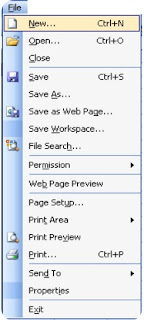


As you remember, in previous post, we have talked about File Menu Commands upto Web Page Preview.
http://www.prithviraj.com.np/2012/06/microsoft-excel-2003-file-menu-and-its.html

Lets start with remaining commands.


11. Page Setup :


When you click this option Page Setup dialogue box appears from which you can adjust document margins, paper size, orientation, header footer, sheet, etc. This is one of the important option for printing document.

    12. Print Area :

This command sets the print area of current worksheet. You can choose which cell range should be printed in paper. You can also clear print area that you previously set. To Set a Print Area, choose range of cells by selecting, then click on File menu, choose Print Area option and finally choose Set Print Area option. To Remove a Print Area click on File menu, go to Print Area and choose Clear Print Area option.

   13. Print Preview :

This option shows how the document will appear after printing in paper. This is very important task before printing any document to save Paper and money. If any improvement needed you have to adjust document margins and other properties from Page Setup option. 

   14. Print (Ctrl+P) : 


This command sends instruction to attached printer that is configured with system. You have options to choose Printer, Page Range, Number of Copies, etc. Shortcut key for this command is CTRL+P.

   15. Send To :

If you want to send your excel workbook to other people via e-Mail you have following options to send the file. This command has following sub-menu:  

  1. Mail Recipient
  2. Mail Recipient (For Review)
  3. Mail Recipient (As Attachment)
  4. Routing Recipient
  5. Exchange Folder
  6. Online Meeting participant
  7. Recipient using Internet Fax-Service

   16. Properties : 

This command shows you Document Properties dialogue box to edit or change properties of document such as Title, Subject, Author, Company, Keywords, and other values which are very important to determine the documents property value which will creates Identity of file.


17. Exit : 

This command terminates MS-Excel. This is alternative of ALT+F4 key. You can also quit application from Title Bar or Task bar also. If the document is not saved yet, MS-Word prompts you to save document and shows Save As dialogue box if chosen Yes from prompt and terminates after saving, if chosen No, terminates immediately and if chosen Cancel MS-Excel remains opened. 


Keep reading, for more Tutorials and Articles subscribe. 

All the Best. 


Read More

Friday, 22 June 2012

// // Leave a Comment

Export to Excel from DataGridView in ASP.NET

Hi,
We are going to learn how to Export GridView data to Microsoft Excel at Runtime.

We are using: ASP.NET Framework 4.0, Visual Studio 2010, SQL Server 2008, C#, XHTML 4.01

 Code for ASPX Page (Front-End) Adding GridView and Columns:

&LTasp:GridView ID="gvPros" runat="server" AutoGenerateColumns="false" Width="664px" Font-Names="Calibri"
HeaderStyle-Font-Bold="true" AlternatingRowStyle-BackColor="LightGoldenrodYellow" EmptyDataText="No Records Found. Try again by Changing Filter Options."&GT
&LTColumns&GT
&LTasp:TemplateField HeaderText="Party Name"&GT
&LTItemTemplate&GT
&LTasp:Label ID="lblPartyName" runat="server" Text='&LT%#Eval("PartyName")%&GT'&GT&LT/asp:Label&GT
&LT/ItemTemplate&GT
&LT/asp:TemplateField&GT
&LT/Columns&GT
&LTColumns&GT
&LTasp:TemplateField HeaderText="Mode"&GT
&LTItemTemplate&GT
&LTasp:Label ID="lblFreight" runat="server" Text='&LT%#Eval("Division")%&GT'&GT&LT/asp:Label&GT
&LT/ItemTemplate&GT
&LT/asp:TemplateField&GT
&LT/Columns&GT
&LTColumns&GT
&LTasp:TemplateField HeaderText="Month"&GT
&LTItemTemplate&GT
&LTasp:Label ID="lblMonthName" runat="server" Text='&LT%#Eval("ProMonth")%&GT'&GT&LT/asp:Label&GT
&LT/ItemTemplate&GT
&LT/asp:TemplateField&GT
&LT/Columns&GT
&LTColumns&GT
&LTasp:TemplateField HeaderText="Total Box"&GT
&LTItemTemplate&GT
&LTasp:Label ID="lblTotalBox" runat="server" Text='&LT%#Eval("ProPkg")%&GT'&GT&LT/asp:Label&GT
&LT/ItemTemplate&GT
&LT/asp:TemplateField&GT
&LT/Columns&GT
&LTColumns&GT
&LTasp:TemplateField HeaderText="Actual Weight"&GT
&LTItemTemplate&GT
&LTasp:Label ID="lblPartyName" runat="server" Text='&LT%#Eval("ProActWt")%&GT'&GT&LT/asp:Label&GT
&LT/ItemTemplate&GT
&LT/asp:TemplateField&GT
&LT/Columns&GT
&LTColumns&GT
&LTasp:TemplateField HeaderText="Charged Wt"&GT
&LTItemTemplate&GT
&LTasp:Label ID="lblChWt" runat="server" Text='&LT%#Eval("ProChWt")%&GT'&GT&LT/asp:Label&GT
&LT/ItemTemplate&GT
&LT/asp:TemplateField&GT
&LT/Columns&GT
&LTColumns&GT
&LTasp:TemplateField HeaderText="Freight"&GT
&LTItemTemplate&GT
&LTasp:Label ID="lblFreight" runat="server" Text='&LT%#Eval("ProFreight")%&GT'&GT&LT/asp:Label&GT
&LT/ItemTemplate&GT
&LT/asp:TemplateField&GT
&LT/Columns&GT
&LT/asp:GridView&GT

Adding Export Link
 &LTasp:LinkButton ID="lnkExport" runat="server" Text="Export to Excel" onclick="lnkExport_Click"&GT&LT/asp:LinkButton&GT

Now Code for ASPX.CS Page (BackEnd):


Namespaces :
using System;
using System.Collections.Generic;
using System.Linq;
using System.Web;
using System.Web.UI;
using System.Web.UI.WebControls;
using System.Data;
using System.Data.SqlClient;
using System.Configuration;
using System.Drawing;
using System.IO;
using System.Text;
using System.Web.Security;
using System.Web.UI.HtmlControls;
using System.Web.UI.WebControls.WebParts;

Data Binding and Export LinkButton Click Event:
void GVProsFill()
{
string Query = "Select * from Parties, Prosperity where Parties.PartyID=Prosperity.ProParty";
SqlConnection con = new SqlConnection(ConfigurationManager.ConnectionStrings["ConToSEPL"].ConnectionString);
SqlDataAdapter adp = new SqlDataAdapter(Query, con);
DataSet ds = new DataSet();
adp.Fill(ds);
gvPros.DataSource = ds.Tables[0];
gvPros.DataBind();
}

//You have to add an another Event for Export to work properly:
public override void VerifyRenderingInServerForm(Control control)
{
// Can Leave This Blank.
}

protected void lnkExport_Click(object sender, EventArgs e)
{
Response.ClearContent();
Response.Buffer = true;
Response.AddHeader("content-disposition", string.Format("attachment; filename={0}", "Prosperity.xls"));
Response.ContentType = "application/ms-excel";
StringWriter sw = new StringWriter();
HtmlTextWriter htw = new HtmlTextWriter(sw);
gvPros.AllowPaging = false;
GVProsFill();
gvPros.HeaderRow.Style.Add("background-color", "#FFFFFF");
for (int a = 0; a < gvPros.HeaderRow.Cells.Count; a++)
{
gvPros.HeaderRow.Cells[a].Style.Add("background-color", "#507CD1");
}
int j = 1;
foreach (GridViewRow gvrow in gvPros.Rows)
{
gvrow.BackColor = Color.White;
if (j <= gvPros.Rows.Count)
{
if (j % 2 != 0)
{
for (int k = 0; k < gvrow.Cells.Count; k++)
{
gvrow.Cells[k].Style.Add("background-color", "#EFF3FB");
}
}
}
j++;
}
gvPros.RenderControl(htw);
Response.Write(sw.ToString());
Response.End();
}

I will be waiting to Listen from you....
Read More

Tuesday, 12 June 2012

// // Leave a Comment

Microsoft Excel 2003 : File Menu and Its Commands-1

Hello Friends,

I am Back with Excel Tutorial Series. Lets Start with File Menu and Its Commands....

1) New (Ctrl+N) : 

As in earlier software we learned, New works same. When clicked New in File menu you will get New option in Task Pane and you have following options to choose:
Blank Workbook
From Existing Workbook….
As I told earlier, MS-Excel’s document is known as Workbook. Choose Blank Workbook to create one.
Shortcut Key for New Blank Workbook is CTRL+N (^N).


2) Open (Ctrl+O) :

This option is used to Open previously saved Workbook for Viewing, Editing, Printing or Analyzing.
Shortcut for this option is CTRL+O.  Here is Open Dialogue Box.

3) Close :

This command is used to close current workbook. You can close your file without exiting from program. 
When clicked Close it prompts you to save workbook if it is not saved yet. 
Shortcut for this option is CTRL+W.

4) Save (Ctrl+S) :

This option saves current active workbook. 
If it is being saved first time it displays Save As Dialogue Box and gives you option to choose location, give name of workbook and Set File Format else it updates current workbook. 
Shortcut for this command is CTRL+S. Here is a Save As Dialogue Box.

5) Save As :

This command displays Save As dialogue box each and every time you click/choose this option. Even your workbook is Already saved, you will get Save As dialogue box to save your file with other name, at other location or with another format/extension. This command is also a very popular and useful command for Excel. 
Shortcut Key for this option is F12.

6) Save As Web Page :

This command saves current workbook as Web Page so that it can be published on the web. You have options to choose which sheet you want to publish, Add interactivity, etc. Whenever clicked this option, save as dialogue box appears with some modification. Such as Change Title and other option.


7) Save Workspace ;


A Document Workspace site is a Microsoft Windows Share Point Services site that is centered around one or more documents. You and your friend can work on same Workbook at same time at Workspace and update the individual work at final stage.
So this is very good feature of MS-Excel that makes work easy and friendly in Networking.

8) File Search : 

This option is used to search Files or File Contents. This is same as File or Folder Search option in Start Menu. But you can search only such documents which are supported by MS-Excel. You have feature to choose location and File Type on Task Pane when this option is chosen.


9) Permissions :


You can create workbook with restrictions only if you have installed Professional version of Microsoft Office 2003.
This feature works on MS-Word, MS-Excel, MS-PowerPoint or MS-Excess only if Information Right Management feature is added to your software.
This feature manages to whom you allow to make change or share your file.

10) Web Page Preview:


This option shows the workbook in browser how it would look like after publishing. If you have created your document for Web Page purpose you can experience the high quality fun of creating web pages. The temporarily converted webpage is stored in temporary folder in .mht and final output file is in .html format.

Remaining Options will be completed soon.

Thanks for Patient. 
Read More

Saturday, 9 June 2012

// // Leave a Comment

Shortcuts in Microsoft Excel 2003

Some Basic and Important Shortcuts.

     Short Key                                          Function
Tab or  Key (Right Arrow)           Move One Cell Right.
Shift + Tab or  (Left Arrow)         Move One Cell Left.
Enter or  Key  (Down Arrow)      Move One Cell down.
Shift + Enter or  (Up Arrow)       Move one Cell up.
Page Up                                          One Screen Up.
Page Down                                     One Screen Down.
Alt + Page Up                                One Screen Left
Alt + Page Down                           One Screen Right
Ctrl + Page Up                               Move Worksheet Left
Ctrl + Page Down                          Move Worksheet Right
Ctrl + End                                      Last Active Cell
Ctrl + Home                                  First Active Cell
Ctrl +    (Right Arrow)              Last Column of Workbook
Ctrl +     (Left Arrow)               First Column of Workbook
Ctrl +     (Down Arrow)            Last Row of Workbook
Ctrl +      (Up Arrow)               First Row of Workbook

How to Close Microsoft Excel  2003.

You can close Microsoft Excel in following ways:
  • Click on Lower Close button located below the Title Bar’s Close button. Doing this will prompt you top save document if it is not saved yet. Then Click on Close Button of Title Bar.
  • Right Click on File Name in Task Bar and choose  Close option. Microsoft Excel will prompt you to save document if it is unsaved.
  • Click on ALT+F4 key directly from Keyboard. Microsoft Excel will prompt you to save document if it is unsaved.

Read More
// // Leave a Comment

Screen of Microsoft Excel 2003

This is the Screen of Microsoft Excel 2003 when opened a New Blank Excel Workbook.

Let's be familiar with the MS-Excel Window.

Components of MS-Excel Screen as above numbered

  • Title Bar -----1 
  • Menu Bar -----2 
  • Standard Tool Bar -----3 
  • Formatting Tool Bar -----4 
  • Formula Bar -----5 
  • Global Point -----6 
  • Row Headings -----7 
  • Column Heading -----8 
  • Cell -----9 
  • Cell Range -----10 
  • Work Area/ Creating Area -----11 
  • Sheet Tabs -----12 
  • Scroll Bars (Vertical and Horizontal)----13A+13B 
  • Task Pane -----14 
  • Status Bar -----15 
Coming with Next Chapter soon.
Read More

Monday, 24 October 2011

// // Leave a Comment

About Microsoft Excel 2003


Hi All,
I am going to introduce you with Microsoft Excel in brief. Sorry for those who already knew it more.
Microsoft Excel is an Spreadsheet program that is a member of MS Office. Spreadsheet is an electronic sheet that allows you to enter and store data in grid format in computer system. Spreadsheet is electronic version of Accountants book which contains a lot of cells. This has feature to calculate, auto-update, store and retrieve and easy to use GUI tools for operating software. MS-Excel is mainly used for mathematical, statistic and data entry purpose. This is most powerful tool of MS-Office package.
Features of Excel:
Following are the features of MS-Excel.
  1. Easy to use GUI Windows platform and Menu driven concept.
  2. So many functions and formulae for easy calculation and data records.
  3. Can be used as Database and is also supports multiple file formats which helps you to open varieties of document in single application.
  4. Also supports Charts and Tables.
  5. Online and offline support for user about Application and its contents.
  6. Document can be shared through out network that is a concept of multi-user.
  7. Data Import and Export feature.
  8. Templates and Designs for pleasant look.
  9. Understands different formats of number such as date, time, currency, normal etc.

How to Start MS-Excel 2003

You can open Microsoft Excel in two ways:
  • Go to Start  Click on Programs/All Programs  Choose Microsoft Office  Choose Microsoft Office Excel 2003.
  • Go to Start  Click on Run  Type excel in open box  click OK.
  • With Regards,
    John Bhatt
Read More
// // Leave a Comment

Terminology Related to Excel….


Some important terms related to Microsoft Excel.
  • Cell: A rectangular shape made by intersection of Row and Column grid.
  • Row: Horizontal group of Cells.
  • Column: Vertical group of cells.
  • Worksheet: A electronic spreadsheet made of 65536 rows and 256 columns.
  • Work Book: A collection of one or more Worksheets.
  • Range: Selection of cells.
  • Cell Address: Unique location of cell that is composed of Column name followed by Row number. Eg. A1, C65536, IV65536 etc.
Read More
// // Leave a Comment

Microsoft Excel 2003 Intro and Specifications….


General Introduction

Application Name: excel.exe
Default File Format: .xls
Also Supports: .csv, .dbf, .html, .mhtml, .xml, .dif etc.
Application Version: 11.xxxx.xxxx
Application Title: Microsoft Office Excel 2003
Application Vendor: Microsoft Corporation, USA.

Technical Info

Total Rows: 65536
Total Columns: 256
Default Cell Width: 8.43
Default Cell Height: 12.75
Default Worksheets: 3
Maximum Worksheets in a Book: Limited by Memory (Unlimited).
Minimum Worksheets in a Workbook: 1
Read More